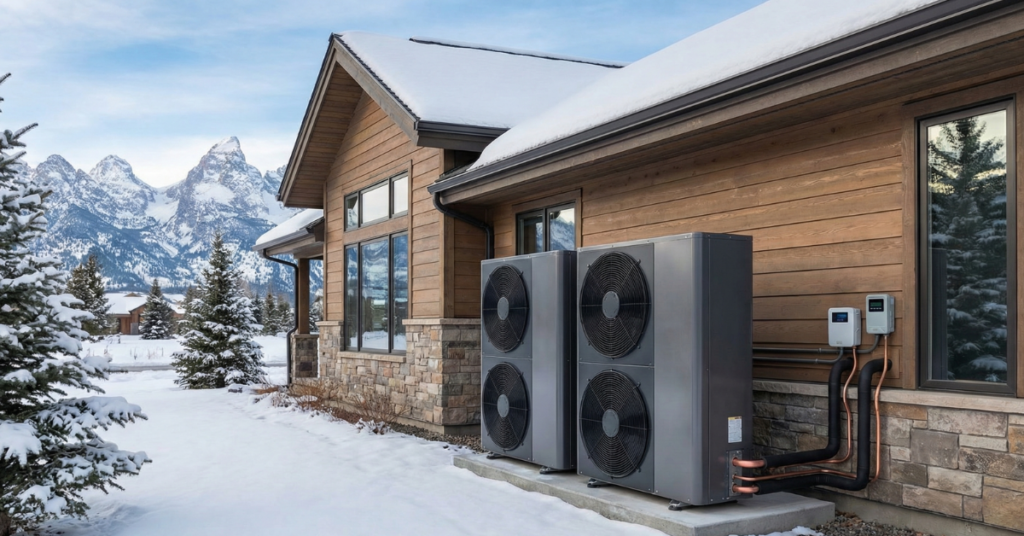




You wake up on a chilly Idaho Falls morning to find your thermostat screen completely blank. Last night’s power outage left your home’s temperature control in limbo. Thermostat issues can range from WiFi disconnections to complete system freezes, leaving your home uncomfortable.
How to Reset Your Thermostat Honeywell Nest and More
Most of these problems can be solved with a simple reset that takes less than five minutes. This guide covers reset instructions for major thermostat brands including Honeywell and Nest, when to reset, and when professional help is needed.
When Should You Reset Your Thermostat?
Understanding when your thermostat needs a reset can save you time and frustration. Several common causes of thermostat drift can throw off your home’s temperature control.
Common Situations Requiring a Reset
Power outages are one of the most frequent culprits. When electricity cuts out, digital thermostats lose their connection to your HVAC system. Even after power returns, they may display the wrong time or fail to communicate with your equipment.
WiFi connectivity problems plague smart thermostats. Your Nest or Honeywell smart model might show “offline” in the app despite your internet working fine. These WiFi connectivity issues often stem from router updates or the fact that most smart thermostats only support 2.4GHz network compatibility requirements rather than 5GHz bands.
Temperature reading problems are another clear signal. When your room feels noticeably different than what your thermostat displays, you’re experiencing temperature reading discrepancies that waste energy. If you notice signs your thermostat needs resetting like short cycling or a system that won’t shut off, these indicate disrupted communication.
Seasonal changeovers from heating to cooling mode also benefit from a fresh start. When transitioning from Idaho’s winters to warmer months, clearing old schedules ensures your system starts the season with accurate settings. This is also ideal for scheduling seasonal heating maintenance.
Understanding Reset vs. Restart vs. Factory Reset
Many homeowners use these terms interchangeably, but they perform different functions. Knowing the distinction between reset and restart helps you choose the right approach.
Three Types of Resets
A restart (soft reset) is like rebooting your computer. It keeps all your settings intact while clearing temporary glitches. According to Nest’s official reset documentation, this should always be your first step.
A standard reset clears more data but may preserve some basic settings. This middle-ground solution works when persistent errors won’t clear with a restart.
A factory reset is the nuclear option. It erases all customized data, returning your thermostat to its original state. You’ll need to reprogram everything from scratch. Only use this when other methods fail or when you’re moving.
How to Reset a Honeywell Thermostat
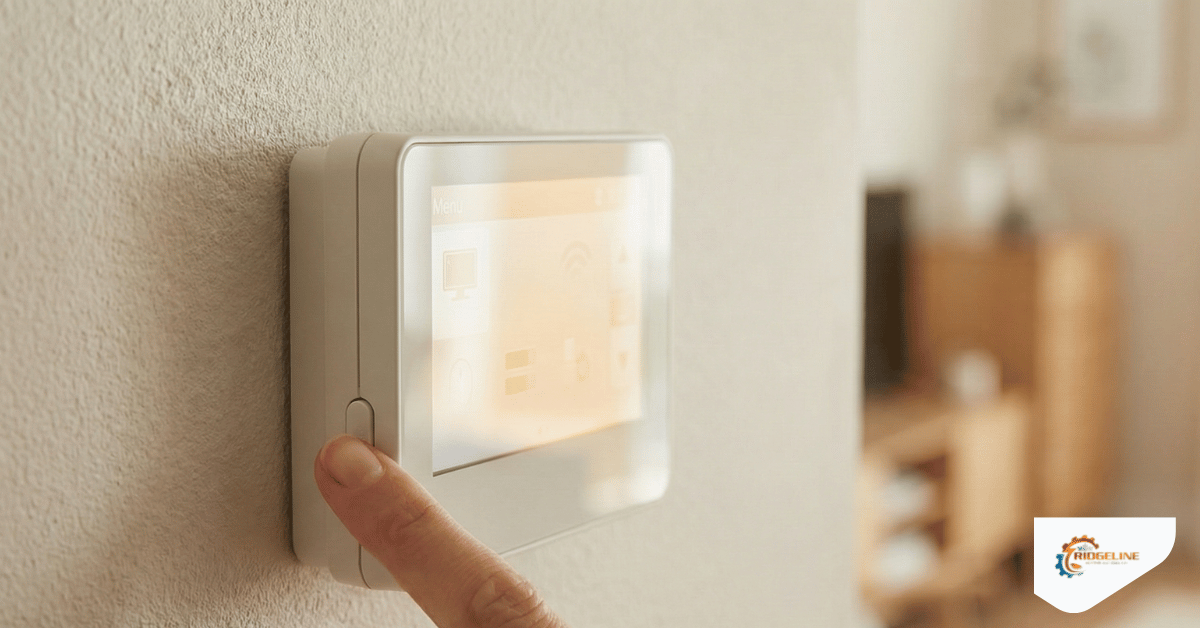
Honeywell produces several popular thermostat models, each with slightly different reset procedures. Here’s how to reset the most common versions. For more detailed troubleshooting, check out our complete Honeywell thermostat reset guide.
T5, T6, and T6 Pro Models
- Turn off your thermostat using the power button or system switch
- Press and hold the center button on the device to access the main menu
- Use the arrow buttons to navigate to Settings, then select Reset
- Choose Factory Reset from the available options
- Confirm your selection and wait for the thermostat to restart completely
6000 and 8000 Series
- Switch off the thermostat completely
- Press and hold the Fan button while simultaneously pressing the Up arrow button
- Keep both buttons pressed until you see the screen change
- Release the buttons, then press the Fan button one more time
- Use the arrow buttons to navigate to the Reset option
- Select it to confirm, and reconfigure your settings after the system restarts
Battery-Powered Honeywell Models
- Turn off the thermostat and open the battery compartment (you may need to remove the unit from the wall)
- Remove all batteries completely from their slots
- Insert the batteries backward, reversing the polarity, for 5-10 seconds
- Remove the batteries again and reinstall them in the correct orientation
- Replace the thermostat on the wall and turn it on to verify the reset worked
This reverse battery polarity reset method is surprisingly effective for clearing stubborn errors on battery-powered models.
How to Reset a Nest Thermostat
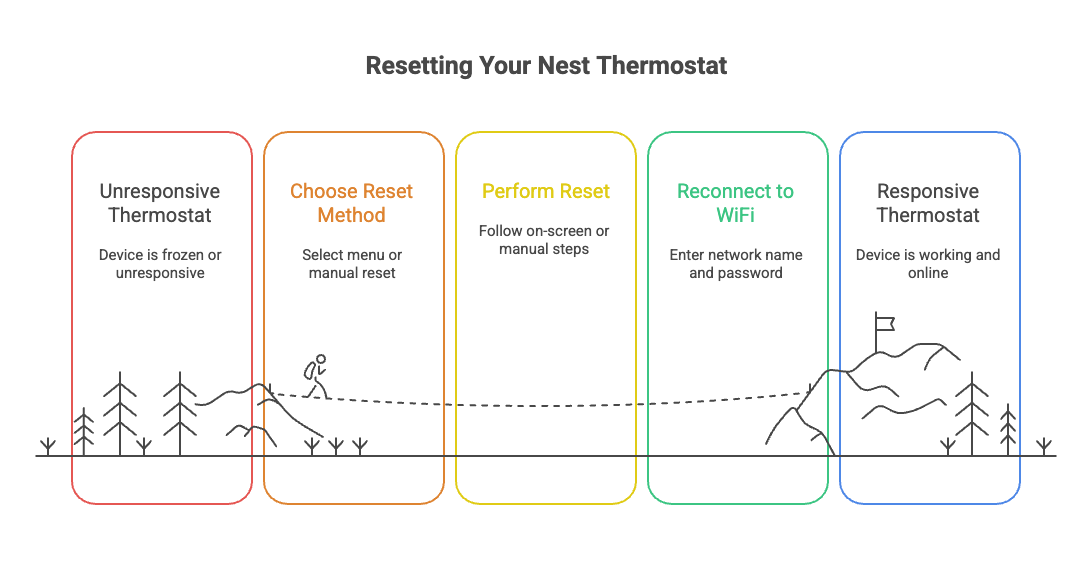
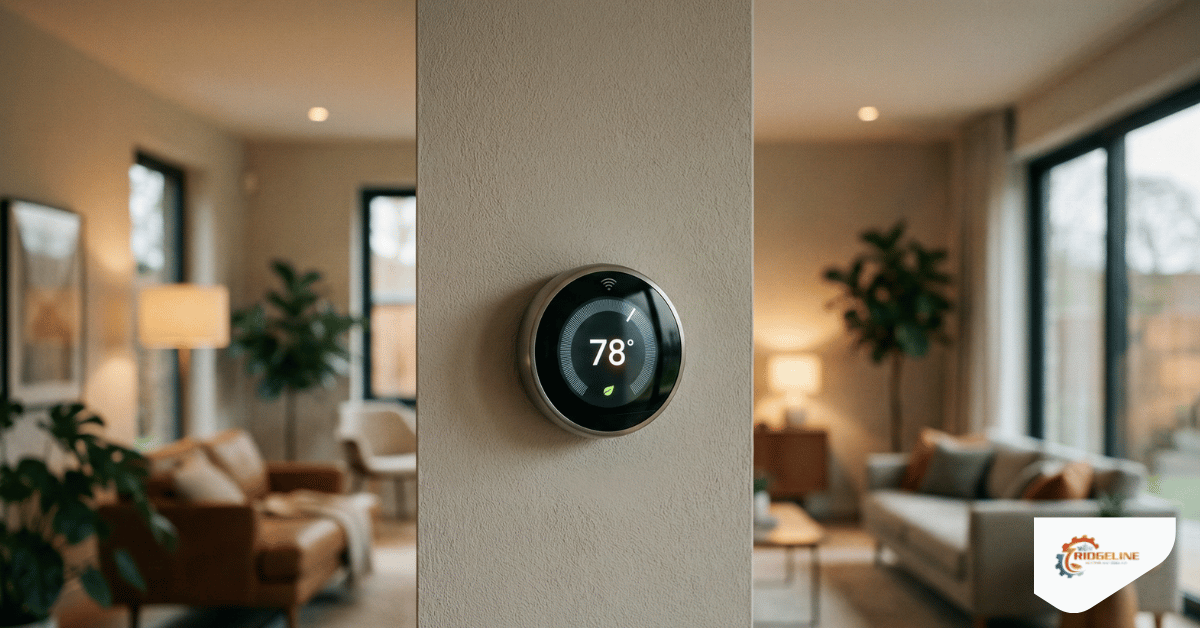
Nest thermostats offer user-friendly reset options through both on-screen menus and manual methods when the device becomes completely unresponsive.
Menu Method
- Press the Nest display to open the Quick View menu
- Turn the dial and tap Settings
- Navigate to the Reset option in the menu
- Choose between Restart (keeps all settings) or Factory Reset (erases everything)
- Tap OK to confirm your selection
- Wait 2-3 minutes for your thermostat to complete the restart process
Manual Battery Reset (If Frozen)
- Firmly pull the Nest display straight off its wall base
- Remove both AAA batteries from the back of the unit
- Wait a full 10 seconds to ensure all residual power drains
- Reinsert the batteries in the correct orientation, matching positive to positive
- Press the thermostat firmly back onto the base until you hear it click into place
- Wait for the display to power on and complete its startup sequence
Reconnecting to WiFi After Reset
- From the Quick View menu, navigate to Settings, then Network
- Select your home WiFi network name from the available networks list
- Enter your WiFi password carefully using the dial
- Confirm the connection and look for the WiFi icon to appear on the display
- Open the Nest app on your phone to verify the thermostat shows as online
Resetting Other Thermostat Types
Not everyone has a Honeywell or Nest model. Here’s how to reset other common thermostat types you’ll find in Idaho homes.
Programmable Thermostats
Digital programmable thermostats from brands like White-Rodgers, Emerson, and Lux share similar reset processes. Most have a small recessed reset button that requires a paperclip or pin to access.
- Turn off your air conditioning and heating system completely at the thermostat
- Locate the reset button on the thermostat’s circuit board (often behind the faceplate or in a small hole)
- Use a paperclip or pin to press and hold the reset button for 5-10 seconds until the display goes blank
- Wait for the thermostat to reboot, then reprogram your clock, temperature, and schedule settings
Make sure to give the system proper power cycle timing by waiting at least 30 seconds before restoring power.
Mechanical Thermostats
Older mechanical thermostats don’t have digital displays or reset buttons, so you’ll need to use your home’s circuit breaker. Locate the breaker that controls your HVAC system and flip it to the OFF position. Wait a full 30 seconds to allow stored electrical charge to dissipate, then flip the breaker back to ON. Return to your thermostat and verify it’s functioning properly. If your mechanical thermostat has issues with short cycling, you may need to adjust the heat anticipator calibration by moving the calibration arm on the marked disc slightly toward “longer.”
What to Do After Resetting Your Thermostat
A successful reset is only half the battle. You need to verify everything works and reconfigure your settings.
Verify and Reconfigure
Check that your display turns on and shows the current temperature. Test your HVAC by adjusting the temperature a few degrees and listening for your system to start. Monitor accuracy over the next few hours. Once confirmed, reprogram your date and time, set up temperature schedules, and reconnect WiFi for smart models. Review optimal summer thermostat settings to maximize efficiency.
When the Reset Doesn’t Work
Sometimes a reset reveals deeper HVAC problems. We’ve seen Idaho Falls homeowners reset their Nest thermostats only to discover cooling issues persisted due to a failed capacitor. In another case, a Honeywell reset fixed the display, but temperature inconsistencies pointed to a dirty flame sensor requiring professional attention.
Watch for these warning signs:
- Display remains blank or shows error codes after multiple attempts
- HVAC system still doesn’t respond to temperature adjustments
- Temperature readings stay inaccurate despite resets
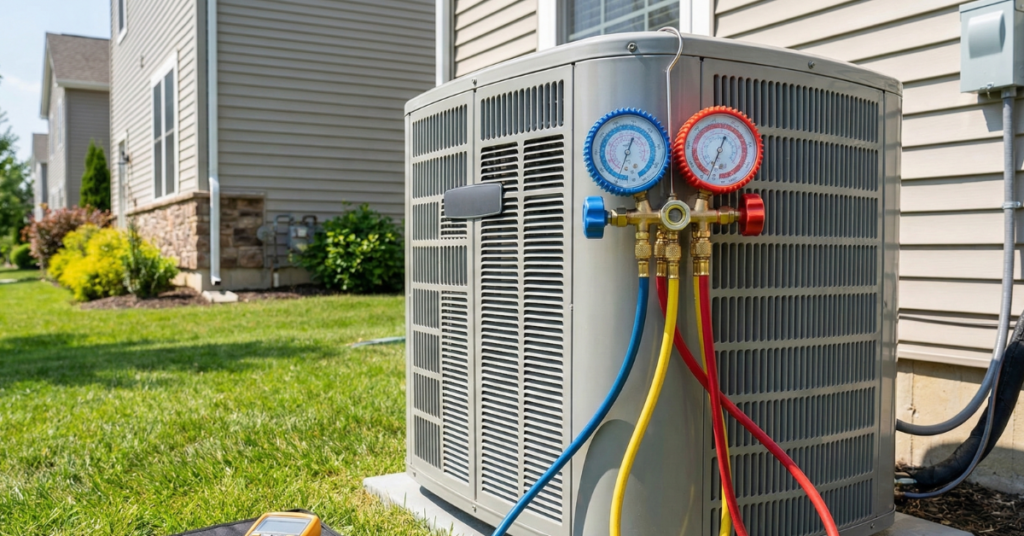
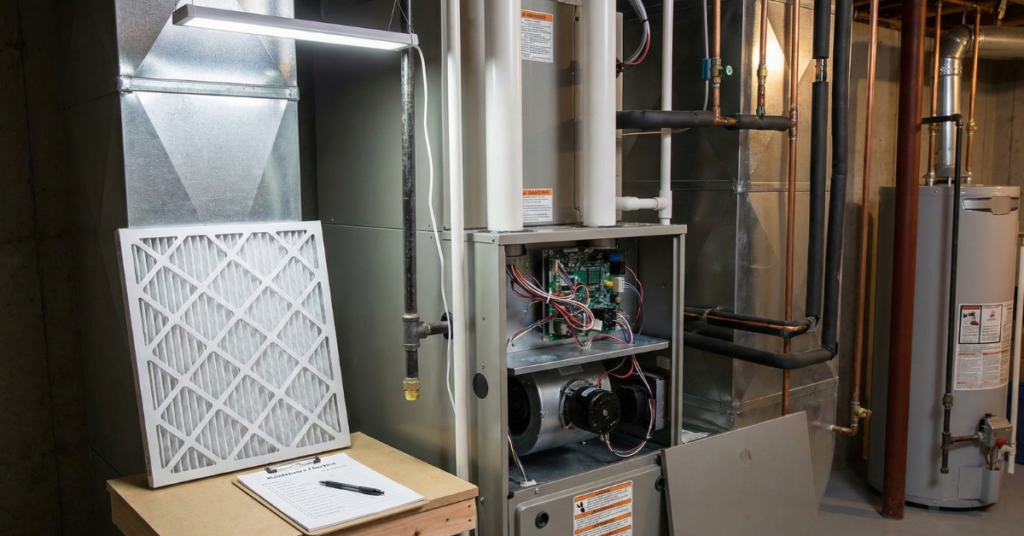
If you see these issues, the problem likely lies with your heating or cooling equipment. Our team provides professional HVAC system diagnostics to identify the root cause. Whether you need AC repair services or furnace troubleshooting, we’ll restore reliable operation.
Take Control of Your Home Comfort
Resetting your thermostat resolves most connectivity, display, and communication issues in under five minutes. Know your thermostat model and try a restart before a full factory reset. After any reset, verify proper operation and reconfigure your schedules.
If your reset doesn’t restore normal function, it’s time for a professional inspection. Our certified technicians diagnose underlying system issues that resetting won’t fix. We also offer expert installation for smart thermostat upgrades with better control and energy monitoring. Contact Ridgeline Heating and Cooling today for honest service and solutions that keep your Idaho home comfortable year-round.